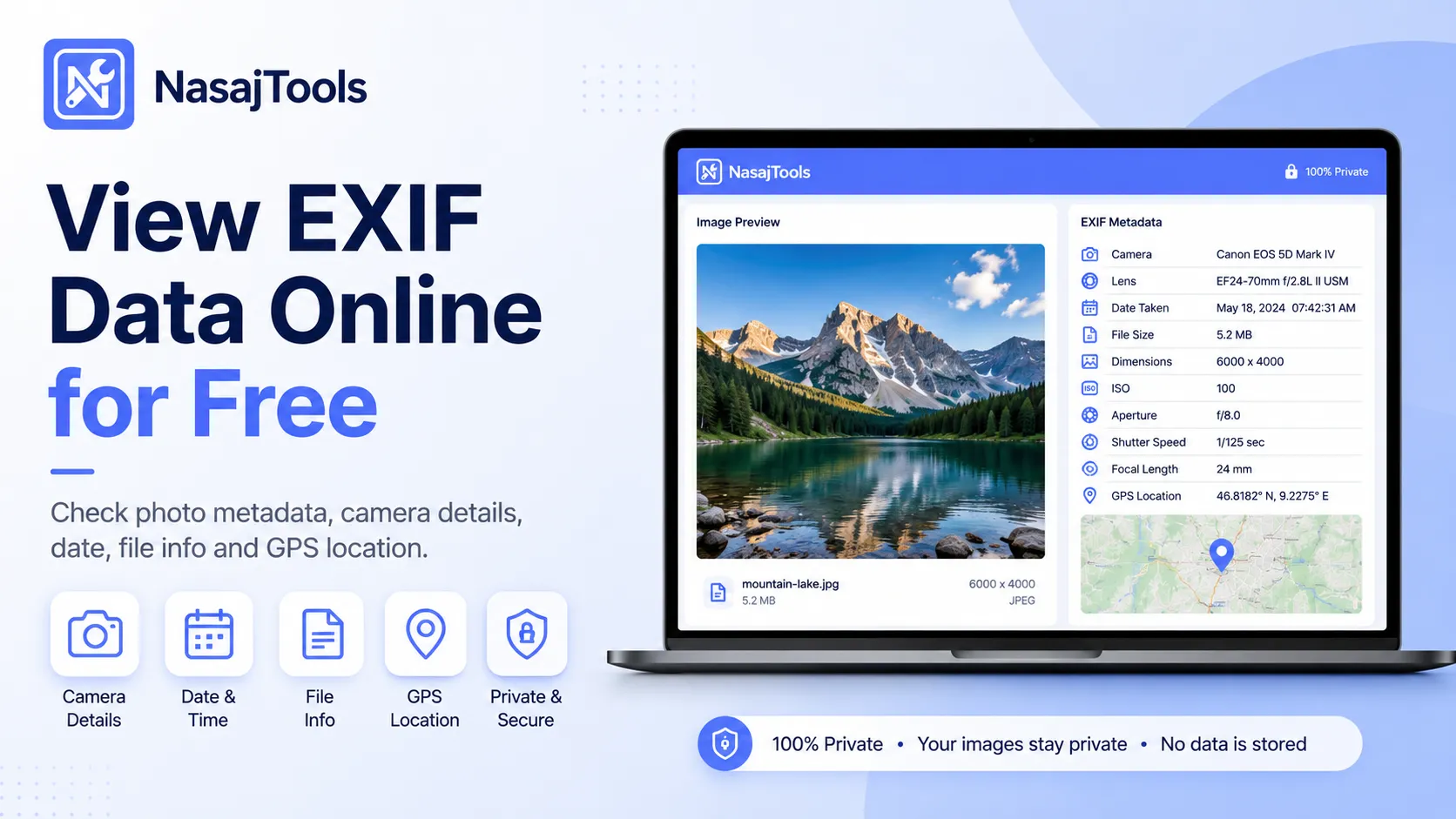
View EXIF data online when you want to understand what hidden information is stored inside a photo before sharing, publishing, or editing it. EXIF data can include camera details, date and time, image size, file information, and sometimes GPS location fields.
If you need a quick way to check photo metadata, use the free EXIF Viewer from NasajTools. Upload an image, review the available metadata, and check whether the file contains camera, date, location, or other image information.
This guide shows you how to view EXIF data online step by step, what EXIF metadata means, why some images do not contain EXIF data, and when you may want to remove metadata before sharing a photo.
What is EXIF data?
EXIF stands for Exchangeable Image File Format. In simple words, EXIF data is metadata saved inside some image files. This metadata is usually created automatically by a phone, camera, scanner, editing app, or image-processing tool.
EXIF data is not normally visible when you look at the image. A photo may look normal, but the file can still contain hidden details about how, when, or where the image was created.
Common EXIF data can include:
- camera make and model
- date and time
- image width and height
- file format and file details
- orientation information
- camera or device settings
- software or editing app details
- GPS location fields, if available
Not every image contains EXIF data. Some apps remove it automatically, and some image formats or exports may only keep limited metadata.
Why you should check EXIF data before sharing photos
Checking EXIF data is useful for privacy, organization, verification, and image publishing. Many people share images without realizing that the file may contain extra information.
You may want to check photo metadata before:
- posting personal photos online
- sending images to clients
- uploading product photos
- publishing blog or website images
- sharing travel photos
- organizing camera files
- checking when or how a photo was created
The most sensitive metadata is usually GPS location. If a photo contains location fields, it may reveal where the image was taken. This is why it is smart to review image metadata before sharing private or personal photos.
How to view EXIF data online for free in 5 steps
You do not need advanced software to inspect photo metadata. An online EXIF viewer can read supported metadata fields and show the information in a clear report.
1. Open the EXIF Viewer
Go to the EXIF Viewer Online Free tool from NasajTools. This tool is made for checking image metadata quickly from your browser.
You can use it to inspect photos from phones, cameras, websites, or image folders, depending on what metadata the file still contains.
2. Upload your image
Choose the image file you want to check. Common image files such as JPG, PNG, WebP, TIFF, and HEIC may contain different amounts of metadata depending on how they were created or exported.
For best results, use the original photo when possible. Images downloaded from social media, messaging apps, or compression tools may have metadata removed already.
3. Let the tool read supported metadata
After you add the image, the EXIF viewer reads the supported metadata fields. If the file contains EXIF data, the tool shows the available details in a report.
The result may include file information, image dimensions, date fields, device details, camera information, and GPS data if available.
4. Review the EXIF report
Look through the metadata report carefully. Start with the basic file details, then check camera or device information, timestamps, and any location-related fields.
If the image contains GPS metadata, review it before sharing the file publicly. Location metadata can be sensitive, especially for personal photos, family images, home pictures, or private business files.
5. Remove metadata only if needed
Some EXIF viewers only show metadata. Some tools also let you remove hidden metadata after reviewing it. If a remover option is available, use it only when you want a cleaner copy of the image before sharing.
Always keep your original file if you may need the metadata later for organization, photography records, or proof of when an image was created.
What can an EXIF viewer show?
An EXIF viewer shows metadata that is actually present inside the image file. The exact result depends on the camera, phone, app, format, export settings, and whether metadata was removed earlier.
File details
File details may include the file name, file type, file size, image dimensions, and format-related information. These details are useful when preparing images for websites, uploads, or archives.
Camera or device information
Some photos include camera make, camera model, phone model, or device-related metadata. This can be useful for photographers, editors, and people organizing photo collections.
Date and time
Many photos include date and time metadata. This can help you understand when an image was created, edited, or exported. However, date fields are not always reliable because they can be changed or removed by apps.
GPS location fields
Some images contain GPS metadata. If present, GPS fields may show location coordinates or map-related information. This can be useful for organizing travel photos, but it can also create privacy risk when sharing personal images.
Orientation and image properties
Image metadata can include orientation, width, height, and other technical properties. These fields can help explain why an image appears rotated or why it displays differently in different apps.
Why EXIF data may be missing from an image
Sometimes you upload a photo into an EXIF viewer and see little or no metadata. This does not always mean the tool is broken. It often means the image file no longer contains EXIF data.
Common reasons EXIF data is missing include:
- the image was downloaded from social media
- the image was sent through a messaging app
- the file was compressed or optimized
- the image was exported from an editing app
- the photo is a screenshot
- the original camera did not save much metadata
- metadata was removed for privacy
Many platforms strip metadata automatically to reduce file size or protect user privacy. That is why original camera files usually contain more metadata than copied, edited, or shared versions.
EXIF data vs image metadata
EXIF data and image metadata are closely related, but they are not exactly the same thing.
EXIF data is a specific type of metadata often created by cameras and phones. It can include details such as camera model, date, exposure settings, orientation, and GPS fields.
Image metadata is a broader term. It can include EXIF data, file details, color information, editing software data, copyright fields, and other technical information.
This means an EXIF viewer is useful for checking photo metadata, but an image metadata viewer may show additional file or technical details depending on the tool and file type.
Can EXIF data show GPS location?
Yes, some images can contain GPS location metadata. This usually happens when a phone or camera has location services enabled while taking the photo.
However, GPS data only appears if:
- the original device saved location information
- the image format supports the metadata
- the metadata was not removed later
- the EXIF viewer supports displaying GPS fields
If GPS fields are missing, the image may not have location metadata. Social platforms, editing apps, and compression tools often remove this information.
Should you remove EXIF data before sharing images?
It depends on the image and your privacy needs. For public sharing, personal photos, private locations, client files, or sensitive business images, removing metadata can be a smart step.
You may want to remove EXIF data before sharing:
- home or family photos
- travel photos with location data
- client images
- private business documents saved as images
- photos that show sensitive places
- images used in public posts or listings
But do not remove metadata if you need it for photography records, legal documentation, internal proof, editing workflow, or file organization.
EXIF viewer vs metadata remover
An EXIF viewer helps you inspect the metadata inside an image. It shows what information is available so you can understand the file before taking action.
A metadata remover helps you strip hidden metadata from the file. This is useful when you want to share a cleaner copy without unnecessary private or technical information.
The best workflow is simple: view the EXIF data first, decide whether anything is sensitive, then remove metadata only if needed.
Best practices when checking photo metadata
When you view EXIF data online, follow a simple process so you do not miss important details.
- Use the original image when possible.
- Check whether the file contains GPS fields.
- Review date and device information.
- Look at image size and format details.
- Keep the original file if metadata may be useful later.
- Remove metadata only when privacy matters more than keeping file history.
- Check the cleaned file again if you remove metadata.
This workflow helps you avoid sharing sensitive metadata while still keeping useful information when you need it.
For a general technical background, you can also read the EXIF overview.
Useful image tools after checking EXIF data
After you view EXIF data online, you may want to prepare the image for sharing, publishing, or uploading. NasajTools has related image tools that can help with the next step.
- EXIF Viewer: view image metadata and check hidden photo details.
- Image Compressor: reduce file size before uploading or sharing.
- Image Resizer: change width and height for websites or social media.
- Image Converter: convert images between common formats.
- JPG to WebP Converter: prepare web-friendly images.
- More Image Tools: browse all image tools from NasajTools.
Conclusion
Learning how to view EXIF data online is useful for privacy, photo organization, website publishing, and image review. A photo can contain hidden metadata such as camera details, date, file information, and sometimes GPS location fields.
Use the EXIF Viewer Online Free tool from NasajTools to check photo metadata before sharing or publishing images.
After reviewing the metadata, keep it if you need the information, or remove it only when you want a cleaner copy for privacy and sharing.