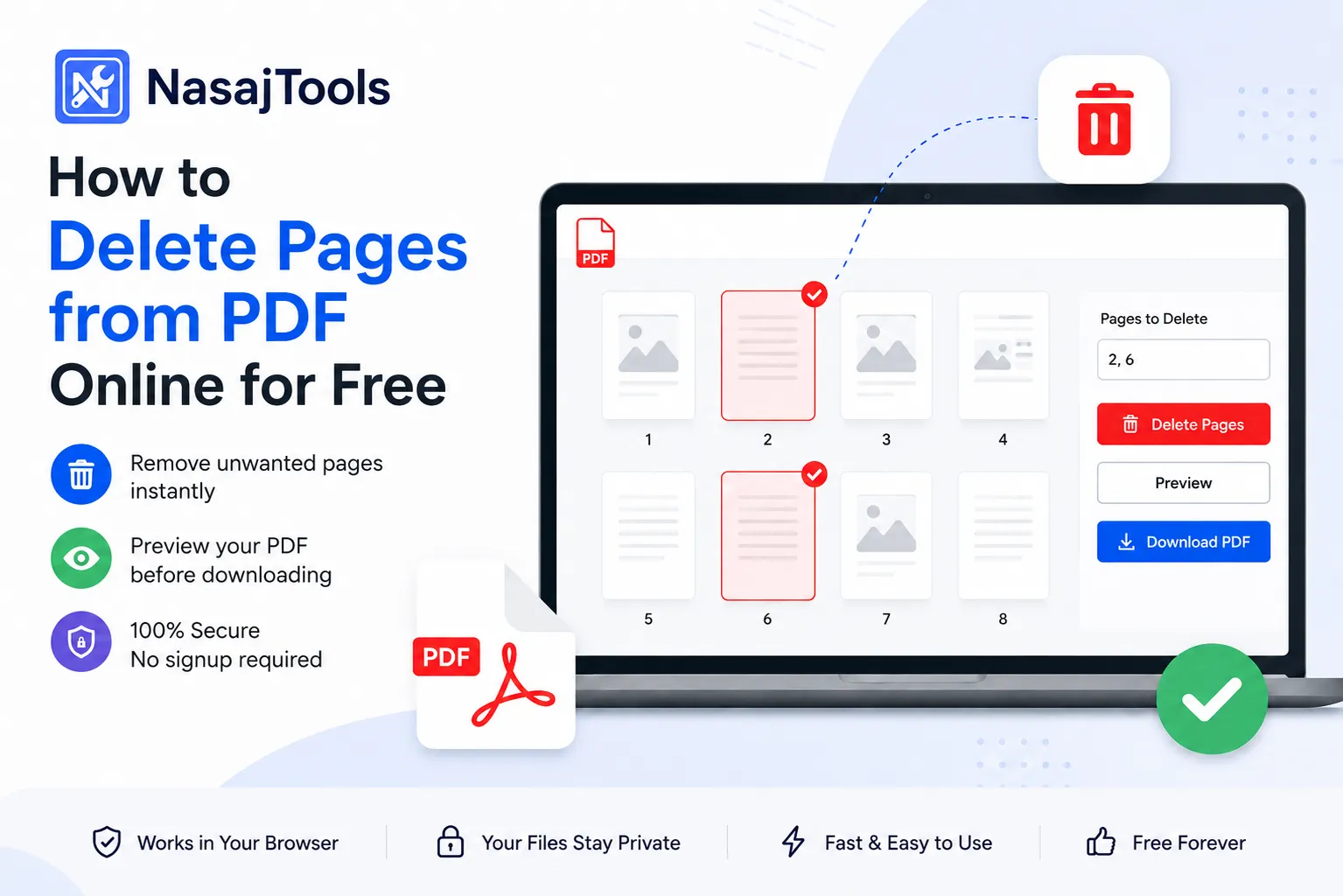
How to Delete Pages from PDF Online Free
If you need to delete pages from PDF online free, this guide shows the fastest way to remove unwanted PDF pages without installing software. You can remove blank pages, duplicate pages, scanned pages, outdated contract pages, or private information from a PDF and download a cleaner version in minutes.
PDFs are useful because they keep documents consistent across devices. The problem is that once a PDF is created, many people think it is difficult to edit. That is wrong. If you only need to remove pages, you do not need a heavy desktop editor. You can use a free online PDF page remover and finish the job directly in your browser.
For a fast workflow, use the free Delete PDF Pages tool on NasajTools. It lets you upload a PDF, select pages to delete or keep, preview the result, and download a clean PDF without signup.
The easiest way to delete pages from PDF online free is to use a browser-based tool that lets you select unwanted pages before downloading the final file.
Why You May Need to Delete Pages from a PDF
Not every PDF needs to stay exactly as it was created. Many files contain unnecessary pages that make the document longer, heavier, or less professional. Removing those pages can make the PDF easier to read and easier to share.
Common reasons to delete PDF pages include:
- Removing blank pages from scanned documents
- Deleting duplicate pages from a merged PDF
- Removing old contract pages before sending a final version
- Deleting private or sensitive information before sharing
- Cleaning up invoices, reports, school files, or forms
- Reducing file size by removing image-heavy pages
- Creating a shorter PDF for clients, teachers, teammates, or customers
The key is simple: if a page does not belong in the final document, remove it before sharing the PDF. Sending messy files looks careless.
How to Delete Pages from PDF Online Free
The easiest method is to use a browser-based PDF page remover. You do not need Adobe Acrobat, a paid editor, or a new account.
Step 1: Open the Delete PDF Pages Tool
Go to the Delete PDF Pages Online tool. This tool is built for one clear job: removing unwanted pages from PDF files.
Step 2: Upload Your PDF File
Upload the PDF you want to edit. After the file loads, you should be able to view the document pages and choose which ones you want to remove.
Step 3: Select the Pages You Want to Delete
Select the unwanted pages. You may remove one page, several individual pages, or a range of pages. For example, you might delete page 1, pages 3 and 5, or a range like pages 10 to 15.
Step 4: Preview the Result
Always preview the updated document before downloading it. This is not optional if the PDF is important. One wrong page deletion can damage a contract, report, application, or school file.
Step 5: Download the Clean PDF
Once the correct pages are removed, download the cleaned PDF. Keep the original file until you are sure the new version is correct.
If you want to delete pages from PDF online free without using Adobe Acrobat, an online page remover is the faster option for simple PDF cleanup.
Delete Pages from PDF Without Adobe
Adobe Acrobat is powerful, but it is not necessary for every PDF task. If you only want to remove pages from a PDF, using a free online tool is usually faster and simpler.
This is especially useful when you are working on a shared computer, using a phone, helping a client quickly, or editing a PDF on a device where you cannot install software.
A browser-based tool is enough for basic PDF cleanup tasks like deleting pages, splitting a PDF, merging files, compressing a PDF, or extracting selected pages.
How to Delete Multiple Pages from a PDF
Many PDFs do not have only one bad page. You may need to remove multiple pages from a long document, especially if the file was scanned, combined from several files, or downloaded from an online system.
Instead of deleting pages one by one, use page ranges when available. This saves time and reduces mistakes.
Examples:
- 1 removes page 1
- 2, 4, 7 removes pages 2, 4, and 7
- 5-10 removes pages 5 through 10
- 1, 3, 8-12 removes page 1, page 3, and pages 8 through 12
This is the correct workflow for large documents. Manually rebuilding a PDF because of a few unwanted pages is a waste of time.
Can You Delete Pages from a Scanned PDF?
Yes, you can delete pages from a scanned PDF. A scanned PDF still has pages, even if the content inside those pages is stored as images instead of editable text.
Removing scanned pages works like removing normal PDF pages. The main difference is file size. Scanned pages are often heavier because they contain image data. If you remove image-heavy scanned pages, the final PDF may become smaller.
If the file is still large after deleting pages, use a Compress PDF tool to reduce the final size.
Delete PDF Pages vs Extract PDF Pages
Do not confuse deleting pages with extracting pages. They are related, but they are not the same task.
Deleting PDF pages means removing unwanted pages and keeping the rest of the document.
Extracting PDF pages means keeping only selected pages and saving them as a new PDF.
Use Delete PDF Pages when most of the document is useful and you only want to remove unwanted pages. Use Extract PDF Pages when you only want to keep a few pages from a larger PDF.
Will Deleting Pages Reduce PDF File Size?
In many cases, yes. Deleting pages can reduce the size of a PDF, especially if the removed pages contain scans, images, charts, graphics, or high-resolution content.
But do not expect a huge size reduction every time. If the deleted pages are mostly plain text, the file size may only change slightly.
The better workflow is this:
- Delete unnecessary PDF pages first.
- Download the cleaned PDF.
- Compress the final PDF if the file is still too large.
For that second step, use Compress PDF.
Best Practices Before Sharing the Final PDF
Do not download the file and send it blindly. That is how mistakes happen. Check the final PDF before sharing it with anyone.
- Preview the final document before downloading
- Make sure no important pages were deleted
- Check that the page order still makes sense
- Keep the original PDF as a backup
- Compress the file if it is too large
- Add page numbers if the document needs structure
- Merge cleaned files if you are preparing one final document
These steps matter more than people think. A poorly prepared PDF makes you look careless, especially in business, school, legal, or client work.
Useful PDF Tools After Deleting Pages
Deleting pages is often only one part of a larger PDF workflow. After cleaning your document, you may need to organize, compress, or combine it with other files.
- Merge PDF Files to combine cleaned documents into one file
- Split PDF to separate a large document into smaller parts
- Extract PDF Pages to keep only selected pages
- Compress PDF to reduce file size after cleanup
- Add Page Numbers to organize final documents
- Talk to PDF if you want to ask questions about the final document
Use a Free PDF Page Remover
If your PDF has extra pages, blank pages, duplicate pages, or sensitive pages, remove them before sharing the file. It is faster than recreating the document and cleaner than sending a messy PDF.
Start with the free Delete PDF Pages Online tool. Upload your PDF, select the pages to remove, preview the result, and download a clean version without signup.
Frequently Asked Questions
How do I delete pages from a PDF for free?
Use a free online PDF page remover. Upload your PDF, select the pages you want to remove, preview the result, and download the cleaned PDF.
Can I remove pages from a PDF without Adobe?
Yes. You do not need Adobe Acrobat for basic page removal. A browser-based tool can delete unwanted PDF pages without installing software.
Can I delete multiple PDF pages at once?
Yes. You can select several pages or enter page ranges such as 1-5, 8, or 10-12 to delete multiple pages at the same time.
Can I delete pages from a scanned PDF?
Yes. Scanned PDFs still contain pages that can be removed. If the scanned pages are image-heavy, deleting them may also reduce file size.
What is the difference between deleting and extracting PDF pages?
Deleting pages removes unwanted pages from the document. Extracting pages keeps selected pages and saves them as a separate PDF.
Will deleting pages reduce PDF size?
Usually, yes, especially if the removed pages contain images, scans, or graphics. For stronger size reduction, compress the PDF after deleting pages.
Do I need to sign up to delete PDF pages?
No. You can delete PDF pages online without creating an account.
Final Thoughts
Deleting pages from a PDF should be simple. If your file has unwanted pages, remove them before sending the final version. A cleaner PDF is easier to read, easier to share, and more professional.
Use the free Delete PDF Pages tool to remove unwanted pages, then continue with other PDF tools if you need to compress, split, merge, or organize the final document.
When you only need to delete pages from PDF online free, do not waste time rebuilding the entire document from scratch.