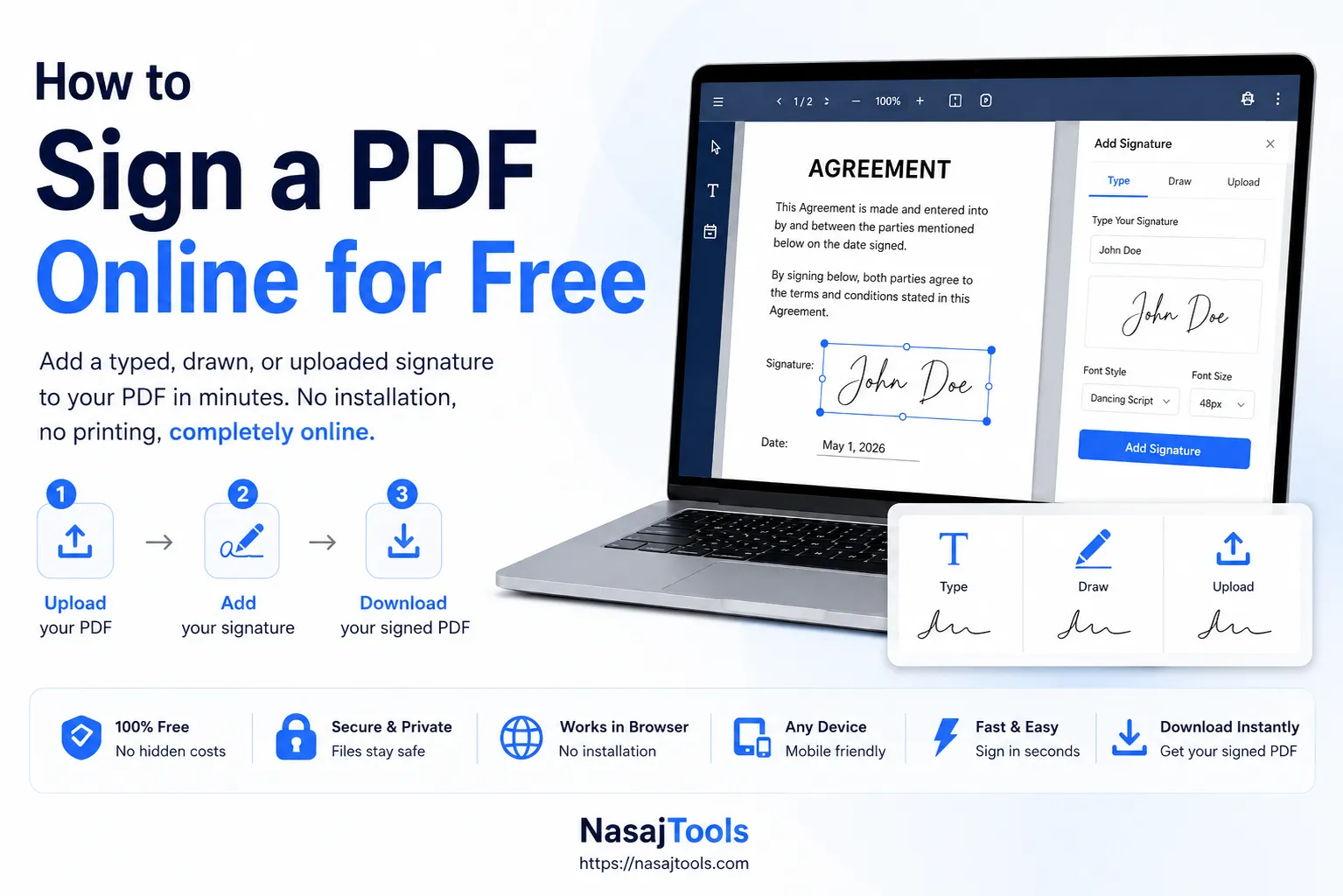
Sign a PDF online when you need to add a signature to a document without printing, scanning, or installing extra software. An online PDF signer helps you upload a PDF, create a visible signature, place it on the page, and download the signed file in a few steps.
If you need a fast option, use the free PDF signer from NasajTools. You can type your signature, draw it, or upload a signature image, then place it on your PDF directly in the browser.
What does it mean to sign a PDF online?
To sign a PDF online means adding a visible signature to a PDF document using a browser-based tool. Instead of printing the file, signing it by hand, scanning it again, and sending it back, you can add your signature digitally on the document page.
This is useful for everyday documents such as forms, contracts, agreements, permission slips, invoices, school documents, and office files. The goal is simple: place your signature where it belongs and download the signed PDF.
Online PDF signing is especially helpful when you need to finish a document quickly. It saves time, avoids paper, and makes it easier to send files by email or upload them to a website.
How to sign a PDF online for free
The easiest way to sign a PDF online is to use a tool that lets you upload the document, create a signature, place it on the page, and download the finished file. The process is simple and does not require advanced editing skills.
1. Open the PDF signer
Go to the Sign PDF Online Free tool. This page is built for adding a visible signature to a PDF quickly from your browser.
You can use it for everyday signing tasks when you need to add a signature to a document without opening a full PDF editor.
2. Upload your PDF
Upload the PDF file that needs a signature. Make sure you select the correct version of the document before you start signing.
If the PDF has multiple pages, check the page where the signature should appear. Some documents need a signature at the end, while others may need initials or approval marks on different pages.
3. Create or add your signature
A good PDF signer should give you more than one way to add a signature. With NasajTools, you can create or add your signature in different ways.
- Type your signature: enter your name and use a handwritten-style signature preview.
- Draw your signature: use your mouse, trackpad, or finger to draw your signature.
- Upload a signature image: upload a PNG, JPG, or WebP signature image.
Choose the option that fits your situation. Typing is fast, drawing feels more natural, and uploading an image is useful if you already have a clean signature file.
4. Place the signature on the PDF
After creating the signature, place it on the correct part of the PDF page. You can move the signature and adjust it so it fits the document properly.
For best results, keep the signature clear and readable. Do not make it too large or too small. It should look natural on the document.
5. Add text, date, or time if needed
Some documents need more than a signature. You may also need to add your name, date, time, or a short note. If the tool supports text, date, and time fields, use them to complete the document before downloading it.
This is useful for approval forms, contracts, invoices, office documents, and records where the signing date matters.
6. Download the signed PDF
When everything looks correct, download the signed PDF. Open the downloaded file and check that the signature appears in the right place.
Before sending the document, review the page carefully. Make sure the signature is visible, the date is correct, and the file opens properly.
When should you use a free PDF signer?
A free PDF signer is useful when you need to add a simple visible signature to a document. It is best for everyday signing tasks where the file does not require advanced identity verification or a certificate-based digital signature.
You can use a PDF signer for:
- Contracts
- Forms
- Agreements
- Invoices
- Permission slips
- Business documents
- School or office PDFs
- Documents that need a simple visible signature
For legal, government, financial, or regulated documents, always check what kind of signature is required before submitting the file.
Typed, drawn, and uploaded PDF signatures
There are different ways to add a signature to a PDF. The best option depends on your document and how you want the signature to look.
Typed signature
A typed signature is the fastest option. You type your name, and the tool shows it in a handwritten-style design. This is useful when speed matters and you need a clean signature without drawing it manually.
Typed signatures are common for simple approvals, forms, and internal documents.
Drawn signature
A drawn signature lets you sign using a mouse, trackpad, touchscreen, or stylus. This feels closer to signing on paper because you create the signature by hand.
This option is useful if you want the signature to look more personal.
Uploaded signature image
If you already have a saved signature image, you can upload it and place it on the PDF. This is useful when you use the same signature often or already have a clean transparent signature file.
Make sure the image is clear and not blurry. A high-quality signature image usually looks better on the final PDF.
Electronic signature vs digital signature
It is important to understand the difference between an electronic signature and a digital signature.
An electronic signature is a visible signature added to a document. It can be typed, drawn, or uploaded as an image. This is what most simple PDF signer tools help you create.
A digital signature can mean something more technical. In many cases, a certificate-based digital signature includes cryptographic validation, identity verification, and tamper evidence.
The NasajTools PDF signer is for adding a visible electronic signature to a PDF. It is not the same as a certificate-based digital signing system.
Legal acceptance depends on your country, organization, document type, and signing requirements. For contracts, government forms, financial documents, or regulated files, check the required signing method before using any signing tool.
For a general background on electronic signatures, you can also review the electronic signature overview.
Is it safe to sign a PDF online?
Safety depends on how the tool processes your document. A privacy-friendly PDF signer should process the file in your browser when possible, so the document does not need to be uploaded to a remote server for editing.
This is helpful when you are working with private documents, internal files, or business paperwork. Always use trusted tools and avoid uploading sensitive files to unknown websites.
Before signing a PDF online, check whether the tool explains how files are handled. A clear privacy message is a good sign.
Tips before sending a signed PDF
After you sign a PDF online, take a moment to review the final file. Small mistakes can create problems later, especially if the document is important.
Check these items before sending the signed PDF:
- The signature is on the correct page.
- The signature is placed in the right field.
- The signature is readable.
- The date is correct if you added one.
- The file opens correctly after download.
- The document does not need a certificate-based digital signature.
If the PDF file is too large after signing, you can compress it before sending.
Useful PDF tools after signing
After signing your PDF, you may need to prepare the document for sending, storing, or uploading. NasajTools has several related PDF tools that can help you finish the workflow.
- Compress PDF: reduce file size after signing.
- Merge PDF: combine signed PDFs with other documents.
- Add Page Numbers to PDF: organize longer signed documents.
- Watermark PDF: add document labels or branding.
- Add Cover Page to PDF: prepare reports, proposals, or business documents before signing.
- More PDF Tools: browse all free PDF tools.
Common mistakes when signing PDFs online
One common mistake is placing the signature in the wrong area of the document. Always zoom in or review the page carefully before downloading the signed PDF.
Another mistake is making the signature too large. A signature should look natural on the page and fit inside the expected signature field.
A third mistake is assuming that every signed PDF is legally accepted everywhere. Some documents need specific signing rules, identity checks, or certificate-based digital signatures.
For everyday forms and approvals, a visible electronic signature may be enough. For official or regulated documents, check the requirements first.
Conclusion
Learning how to sign a PDF online is simple. Upload your PDF, create or add your signature, place it on the document, and download the signed file.
For a fast browser-based option, use the Sign PDF Online Free tool from NasajTools. It helps you type, draw, or upload a signature image and place it on your PDF without printing or scanning.
Before sending the final document, check that the signature is placed correctly and that your document does not require a special certificate-based digital signature.