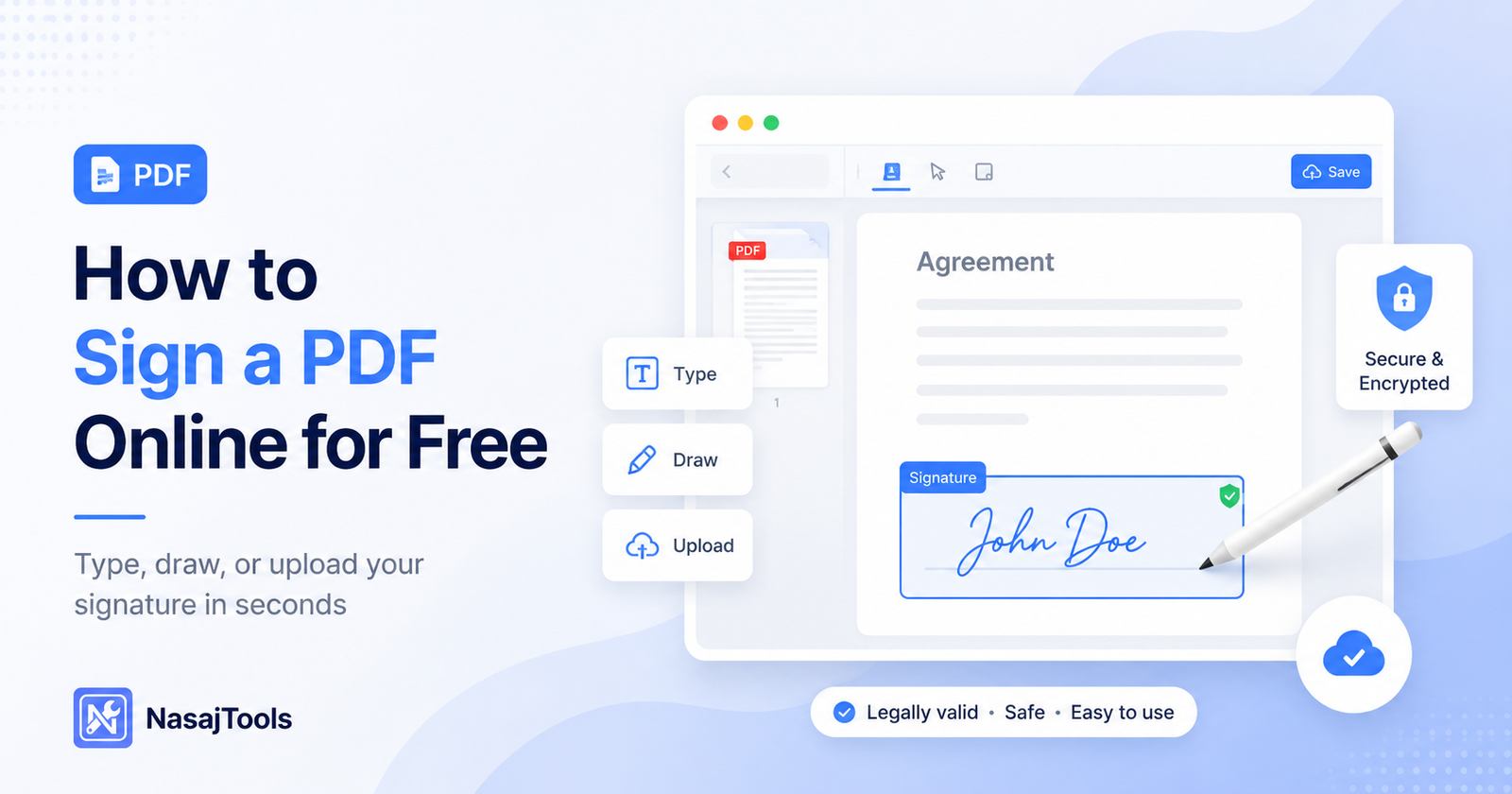
How to sign a PDF online is simple when you use the right tool. You can upload your PDF, add a typed, drawn, or uploaded signature, place it on the correct page, and download the signed file without printing or scanning.
If you want to learn how to sign a PDF online, you can do it without printing, scanning, or installing extra software. You only need a PDF file, a browser, and a simple online signing tool.
The old way of signing documents is slow. You download the file, print it, sign it by hand, scan it again, rename the file, and then send it back. That is too much work for a simple signature.
Today, you can upload a PDF, add your signature, place it on the right page, and download the signed file in seconds. This is useful for contracts, forms, invoices, approvals, school documents, business reports, and other everyday files.
If you need to sign a file now, use the free Sign PDF Online tool to add your signature directly in your browser.
This guide explains how to sign a PDF online without using printers, scanners, or desktop software.
What Does It Mean to Sign a PDF Online?
Signing a PDF online means adding a visible signature to a PDF file using a web-based tool. Instead of printing the document and signing it by hand, you add your signature digitally and download the updated PDF.
A PDF signature can be added in different ways. You may type your name in a signature-style font, draw your signature with a mouse or touchscreen, or upload an image of your signature.
This is useful when you need to show approval, confirmation, or agreement on a document. For many normal documents, a visible signature is enough for everyday use. For legal, financial, government, or highly official documents, you should check the rules that apply to your country, company, or document type.
Online PDF signing is not the same as a certified e-signature system with identity verification and audit logs. Do not confuse the two. A simple online signature is great for speed and convenience, but some serious documents may require a more formal signing process.
How to Sign a PDF Online Step by Step
The easiest way to sign a PDF online is to upload the document, create your signature, place it on the page, and download the final file.
Signing a PDF online is simple if you follow the correct steps.
1. Open the Sign PDF tool
Start by opening the Sign PDF Online tool. This tool lets you add a signature to a PDF without printing or scanning.
2. Upload your PDF file
Choose the PDF file you want to sign. This can be a contract, form, invoice, approval document, school file, report, agreement, or any other PDF that needs a signature.
Before uploading, make sure you are using the correct version of the document. Signing the wrong file is a stupid mistake, but it happens often.
3. Add your signature
Next, add your signature. Depending on the tool, you may have different options:
- type your signature
- draw your signature
- upload a signature image
Choose the option that fits your document best. A typed signature is fast and clean. A drawn signature looks more personal. An uploaded signature image is useful if you already have a clean signature file.
4. Place the signature on the PDF
After creating the signature, place it in the correct area of the PDF. Make sure it is not too large, too small, or covering important text.
A signature should look natural. If it is oversized or placed badly, the document looks careless.
5. Add date or text if needed
Some documents require a date, printed name, company name, or short note beside the signature. Add those details if the form asks for them.
Do not add random text unless the document needs it. Keep the signed PDF clean.
6. Download the signed PDF
When everything looks correct, download the signed PDF. Then open the downloaded file and check it before sending.
Do not skip this step. If the signature is on the wrong page or in the wrong place, you will look unprofessional.
Draw, Type, or Upload a Signature
Different signature methods are useful for different situations. Pick the one that makes sense.
Typed signature
A typed signature is the fastest option. You type your name and the tool turns it into a signature-style text.
This is useful for simple approvals, internal documents, basic forms, and files where a handwritten signature is not required.
Typed signatures are clean, but they may not feel personal enough for every document.
Drawn signature
A drawn signature looks closer to a real handwritten signature. You can draw it with your mouse, trackpad, touchscreen, or finger.
This is useful when you want the signature to look natural. On mobile devices or tablets, drawing with your finger is often easier than using a mouse.
The mistake people make here is drawing too quickly and creating a messy signature. Draw it once or twice if needed and use the cleaner version.
Uploaded signature image
An uploaded signature image is useful if you already have your signature saved as an image file. A transparent PNG usually works best because it blends better with the PDF background.
Avoid blurry, cropped, or low-quality signature images. They make the document look cheap and careless.
When Is an Online PDF Signature Useful?
Online PDF signing is useful when you need to complete a document quickly. It saves time and removes the annoying print-scan-send workflow.
Common examples include:
- signing contracts
- approving internal documents
- signing invoices
- completing school or university forms
- signing permission forms
- adding approval to proposals
- signing onboarding documents
- confirming reports or agreements
- signing business documents before email delivery
The main benefit is speed. You can sign a PDF in a browser and send it back without leaving your desk or installing extra software.
Is Signing a PDF Online Safe?
Signing a PDF online can be safe, but only if the tool handles files properly. You need to be careful here. Do not upload private documents to random websites without understanding how they process files.
A better signing tool should be clear about privacy. If a tool processes the PDF in your browser, that is usually better for everyday documents because the file does not need to go through a long server upload workflow.
NasajTools is designed with a privacy-first approach. The Sign PDF Online tool works directly in the browser so you can add a signature and download the signed file without unnecessary steps.
Still, use common sense. If your document contains highly sensitive medical, legal, financial, or government information, follow the rules of your organization or use an approved signing system.
Is an Online PDF Signature Legally Valid?
Do not assume every online signature is legally valid in every situation. That thinking is lazy and dangerous.
Electronic signatures may be accepted for many everyday documents, but legal requirements depend on your country, document type, company policy, and the level of identity verification required.
For informal approvals, internal documents, school forms, invoices, and routine files, a visible signature may be enough. For official contracts, regulated documents, financial agreements, government forms, or high-value legal documents, you may need a certified e-signature service.
A certified e-signature system may include identity verification, audit trails, timestamps, and legal compliance features. A simple visible PDF signature does not always include those things.
So the safe rule is simple: use online PDF signing for everyday files, but check legal requirements for serious documents.
You can also read general guidance about electronic signatures from Adobe’s official e-signature resources.
What to Do After Signing a PDF
After signing a PDF, you may need to prepare the final file before sending it.
If the signed PDF is too large, use the Compress PDF tool to reduce the file size.
If you need to combine several signed files into one document, use the Merge PDF tool.
If the document needs a professional first page, use the Add Cover Page to PDF tool.
If the file is confidential, branded, or still a draft, use the Watermark PDF tool.
This workflow is cleaner: sign the document, check the result, then prepare the final file for sharing.
Common Mistakes When Signing a PDF
Placing the signature in the wrong area
This is the most common mistake. Always check where the signature should go. Do not place it over important text or outside the signature field.
Making the signature too large
A huge signature looks unprofessional. Resize it so it fits naturally inside the document.
Forgetting to add the date
Some documents require a date beside the signature. If the form needs it and you forget it, the document may be rejected.
Uploading the wrong PDF
Check the file name before signing. Signing the wrong version wastes time and creates confusion.
Using a blurry signature image
If you upload a signature image, use a clean file. A blurry image makes the final PDF look bad.
Sending the file without checking it
Always open the downloaded PDF before sending. Check the signature, page order, date, and file name.
How to Make a Signed PDF Look Professional
A signed PDF should look clean and intentional. Do not just throw a signature onto the page and send it.
Use a signature size that matches the document. Align it with the signature line if there is one. If you add a date, place it near the signature field. If the document has multiple pages, check whether only one page needs a signature or if several pages need initials or approval.
If the document is for business, use a proper file name before sending it. For example:
contract-signed-john-smith.pdf
or:
invoice-approval-signed.pdf
Do not send files with names like:
final-final-new-signed-2.pdf
That looks careless
Final Thoughts
Signing a PDF online is the fastest way to complete everyday documents without printing, scanning, or installing extra software. It is useful for forms, approvals, invoices, contracts, reports, and business paperwork.
The important thing is to use the right workflow. Upload the correct file, add your signature, place it properly, check the final PDF, and then send it.
Use the free Sign PDF Online tool to add your signature, place it on the document, and download the signed PDF in seconds