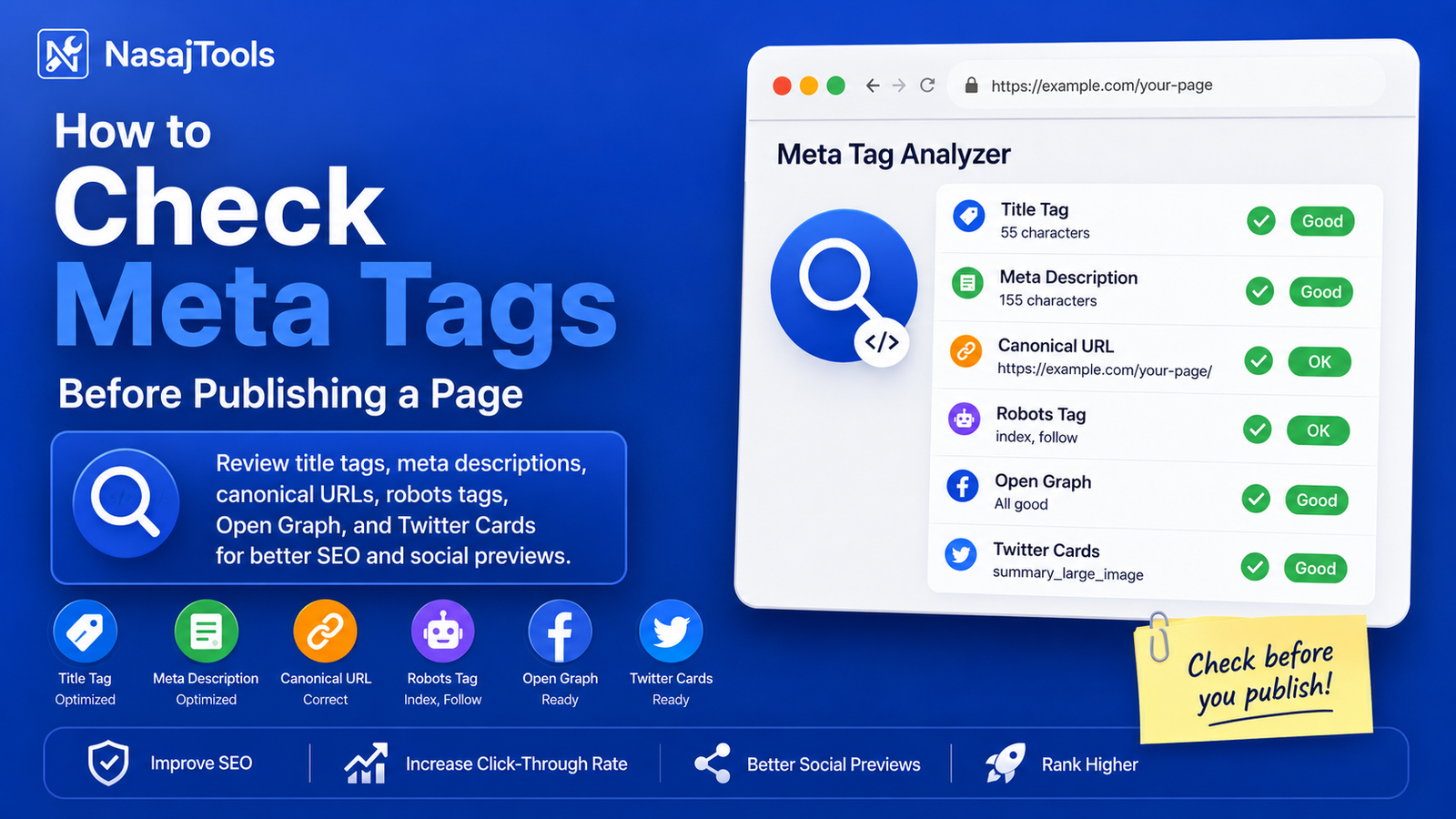
If you want to learn how to check meta tags before publishing a page, you need to review more than just the title and description. Meta tags control how your page appears in search engines, browser previews, social media shares, and sometimes even how crawlers understand your content.
This is not something you should ignore. A page can have strong content and still perform badly if the title tag is weak, the meta description is missing, the canonical URL is wrong, or the Open Graph image is broken.
Before you publish a new page, update an old article, or launch a landing page, use a simple checklist. You can also use the free Meta Tag Analyzer to check title tags, descriptions, canonical URLs, robots tags, Open Graph data, Twitter Cards, and other SEO metadata in one place.
This guide explains how to check meta tags before publishing so you can avoid weak search snippets, broken social previews, and indexing mistakes.
What Are Meta Tags?
Meta tags are pieces of HTML code placed inside the <head> section of a web page. Most users do not see them directly on the page, but search engines, browsers, and social platforms can read them.
Some meta tags affect SEO directly. Others affect how your page looks when shared on social media or displayed in browser previews.
Common meta tags and metadata elements include:
- title tag
- meta description
- canonical URL
- robots meta tag
- viewport tag
- Open Graph tags
- Twitter Card tags
- language and hreflang tags
- structured data, depending on the page setup
Do not treat all meta tags as equal. Some are critical, some are useful, and some are unnecessary. The goal is not to stuff the page with tags. The goal is to use the right tags correctly.
Why Meta Tags Matter for SEO
Meta tags help search engines understand the purpose of a page. They also influence how users decide whether to click your result.
The title tag is one of the most important on-page SEO elements. It appears as the main clickable headline in many search results. If it is unclear, too long, duplicated, or missing the main intent, your click-through rate can suffer.
The meta description does not directly guarantee rankings, but it can affect clicks. A good description tells users what the page offers and why they should open it. A weak one gets ignored or rewritten by Google.
Canonical tags help prevent duplicate content problems. Robots tags can tell search engines whether to index or follow a page. Open Graph and Twitter Card tags help your page look clean when shared.
Bad metadata creates confusion. Clean metadata creates trust.
How to Check Meta Tags
The easiest way to check meta tags is to use a meta tag analyzer. Instead of opening source code and searching manually, you can enter a page URL and get a quick report.
Use the Meta Tag Analyzer when you want to check whether a page has the right SEO metadata before publishing or updating it.
A good meta tag check should include:
- whether the title tag exists
- whether the title is too short or too long
- whether the meta description exists
- whether the canonical URL is correct
- whether robots settings allow indexing
- whether Open Graph tags exist
- whether Twitter Card tags exist
- whether the page has a viewport tag
- whether important social image tags are missing
This process is simple, but most people skip it. That is lazy. If you publish pages without checking metadata, you are gambling with search visibility and click-through rate.
The easiest way to check meta tags is to use a meta tag analyzer instead of manually searching through page source code.
Check the Title Tag
The title tag is usually the first thing to review. It should describe the page clearly and include the main search intent.
A good title tag should be:
- specific
- readable
- relevant to the page
- not stuffed with repeated keywords
- short enough to display well in search results
For example, this is weak:
SEO ToolThis is better:
Free Meta Tag Analyzer | Check Title, Description & Open GraphThe second version is better because it explains the tool and includes the actual use case.
Before publishing, check whether your title tag answers the searcher’s intent. If the page is about checking meta tags, the title should make that obvious.
Check the Meta Description
The meta description should summarize the page in a useful way. It should not be a random sentence. It should tell users what they will get if they click.
A good meta description usually works best around 140 to 160 characters, but do not obsess over exact length. A clear 170-character description is better than a useless 140-character one.
A strong meta description should:
- explain the benefit of the page
- include the main topic naturally
- match the content of the page
- avoid fake promises
- encourage a click without sounding spammy
Bad example:
Use our tool for SEO and online analysis.Better example:
Analyze meta tags online for free. Check title tags, meta descriptions, canonical URLs, robots tags, Open Graph, and Twitter Cards.The better version is specific. It tells the user exactly what the tool checks.
Check the Canonical URL
The canonical tag tells search engines which version of a page should be treated as the preferred version.
This matters when the same content can be reached through multiple URLs, such as:
- with or without trailing slash
- with or without
.html - with tracking parameters
- through duplicate category paths
- through localized or alternate versions
A canonical tag looks like this:
<link rel="canonical" href="https://example.com/page/" />Before publishing, make sure the canonical URL points to the correct final page. If your canonical points to the wrong URL, search engines may ignore the page you actually want to rank.
This mistake is common. It is also avoidable.
Check Robots Meta Tags
The robots meta tag tells search engines whether they should index a page and follow links on it.
A normal public page usually uses:
<meta name="robots" content="index, follow" />Pages like login pages, dashboards, internal search pages, or thank-you pages may use:
<meta name="robots" content="noindex, follow" />Before publishing an important page, check that it is not accidentally set to noindex.
This is a stupid mistake, but it happens. People spend hours writing content and then block it from indexing with one wrong tag.
Use a meta tag checker before publishing, especially if the page was copied from another template.
You can also review Google’s official documentation about special tags that Google understands.
Check Open Graph Tags
Open Graph tags control how your page appears when shared on platforms like Facebook, LinkedIn, WhatsApp, and other apps that read social preview metadata.
Important Open Graph tags include:
<meta property="og:title" content="Page title here" />
<meta property="og:description" content="Page description here" />
<meta property="og:image" content="https://example.com/image.webp" />
<meta property="og:url" content="https://example.com/page/" />
The most common Open Graph problems are:
- missing
og:image - broken image URL
- old title still showing
- wrong page URL
- generic site-wide image used for every page
A page can look fine in Google but look terrible when shared because Open Graph tags are missing or outdated.
Check them before publishing. Do not wait until someone shares the page and the preview looks broken.
Check Twitter Card Tags
Twitter Card tags control how your page appears on X/Twitter and other systems that read Twitter metadata.
Important Twitter Card tags include:
<meta name="twitter:card" content="summary_large_image" />
<meta name="twitter:title" content="Page title here" />
<meta name="twitter:description" content="Page description here" />
<meta name="twitter:image" content="https://example.com/image.webp" />
If you use a featured image, make sure the Twitter image tag uses the right image. If the image is missing, too small, or blocked, your shared preview may look weak.
For blog posts and tool pages, summary_large_image is usually the better option because it gives the preview more visual weight.
Check the Viewport Tag
The viewport tag is important for mobile display. Without it, mobile browsers may render the page badly.
A normal viewport tag looks like this:
<meta name="viewport" content="width=device-width, initial-scale=1.0" />This tag is not exciting, but it matters. If it is missing, mobile usability can suffer. Since Google uses mobile-first indexing, you should not ignore it.
A meta tag analyzer can help you confirm that the viewport tag exists before publishing.
Common Meta Tag Mistakes
Most metadata mistakes are not complicated. They are just sloppy.
Here are the common ones:
- missing title tag
- title tag too generic
- title tag duplicated across pages
- meta description missing
- meta description copied from another page
- canonical URL pointing to the wrong page
- page accidentally set to
noindex - Open Graph image missing
- Twitter image using a generic fallback
- old metadata left from a copied template
- social title different from SEO title for no reason
These problems make the page look unfinished. For SEO pages, tool pages, business pages, and blog posts, that is not acceptable.
When Should You Check Meta Tags?
You should check meta tags before publishing any important page. You should also check them after major updates.
Use a meta tag checker when:
- publishing a new blog post
- launching a landing page
- updating a tool page
- changing a page title
- changing a featured image
- fixing canonical or indexing issues
- preparing a page for social sharing
- auditing competitor pages
- reviewing client websites
For WordPress users, this is especially important because SEO plugins, themes, page builders, and custom templates can sometimes create conflicting metadata.
How to Use a Meta Tag Analyzer
Using a meta tag analyzer is simple.
- Copy the URL of the page you want to check.
- Open the Meta Tag Analyzer.
- Paste the full URL into the input field.
- Run the analysis.
- Review the title tag, meta description, canonical URL, robots tag, Open Graph data, and Twitter Card tags.
- Fix missing or incorrect metadata.
- Test the page again after updating it.
Do not check only once. If you make changes, test again. Guessing is not a workflow.
What to Do After Checking Meta Tags
After checking your metadata, fix the problems in order of importance.
Start with these:
- title tag
- meta description
- canonical URL
- robots tag
- Open Graph title, description, and image
- Twitter Card tags
- viewport tag
If your title and description are weak, rewrite them. If your canonical URL is wrong, fix it before asking Google to index the page. If social images are broken, upload a correct image and update the metadata.
For deeper SEO checks, use the SEO Analyzer. If you are writing titles or descriptions, use the Character Counter to check length and the Text Analyzer to review readability
Final Thoughts
Checking meta tags before publishing a page is not optional if you care about SEO, click-through rate, and clean social previews. It only takes a few minutes, and it can prevent stupid problems like missing descriptions, broken images, wrong canonicals, or accidental noindex tags.
Now you know how to check meta tags before publishing and why this small step can prevent common SEO problems.
Use the free Meta Tag Analyzer to review your page metadata before publishing. Then fix the weak parts, test again, and only then push the page live.