Convert images without losing quality by choosing the right image formats, compression methods, and conversion tools. In this beginner-friendly 2025 guide, you’ll learn how to preserve sharpness, avoid pixelation, and optimize images for web, print, and SEO.
👉 They convert images in a way that reduces quality.
Sometimes the quality loss is small and not noticeable, but other times the image becomes blurry, pixelated, washed out, or completely unusable.
The good news?
You can convert an image from JPG → PNG, PNG → WEBP, WEBP → JPG, and more without losing quality — if you understand the right formats, settings, and conversion rules.
This guide will teach you exactly how to convert images safely, professionally, and SEO-friendly.
By the end, you’ll know:
- Which formats preserve quality
- Which conversions cause damage
- How lossy and lossless compression works
- How to avoid pixelation
- How to convert images using the best recommended tools
- Best formats for web, printing, social media, and design
- Step-by-step methods for lossless conversion
Let’s begin.
🟦 1. Why Do Images Lose Quality During Conversion?
Quality loss happens for two main reasons:
1. Lossy Compression
Formats like JPG and WEBP (in lossy mode) remove data to reduce file size.
Every time you recompress or resave:
- Sharp edges become blurry
- Text becomes fuzzy
- Colors lose richness
This is why repeatedly editing and saving JPG images reduces quality each time.
2. Changing Formats Improperly
Some conversions are naturally safe:
PNG → JPG → sometimes loses quality
JPG → PNG → cannot restore quality
Example:
If your original is:
- A highly compressed JPG (already low quality)
- And you convert it to PNG…
PNG cannot “restore” lost details — so the PNG becomes a high-quality file of a low-quality image.
❗ Important lesson:
Quality lost once cannot be restored, only preserved.
This is why you should convert images correctly from the start.
🟦 2. Lossless vs. Lossy Conversion (Know the Difference)
Before you convert anything, understand these two terms:
Lossless Conversion
The image does not lose any quality.
Best formats for lossless:
- PNG
- WEBP (lossless mode)
- BMP
- TIFF
These formats retain:
- Pixel structure
- Colors
- Sharpness
- Transparency
Use lossless conversion when quality is your priority.
Lossy Conversion
Some detail is removed to reduce file size.
Formats using lossy:
- JPG
- WEBP (lossy mode)
- JPEG2000
- HEIC
Lossy is good for:
- Websites
- Blogs
- Mobile optimization
- Social media
BUT:
You must compress carefully to avoid noticeable quality loss.
🟦 3. Which Image Conversions Keep Quality? (Safe vs. Unsafe)
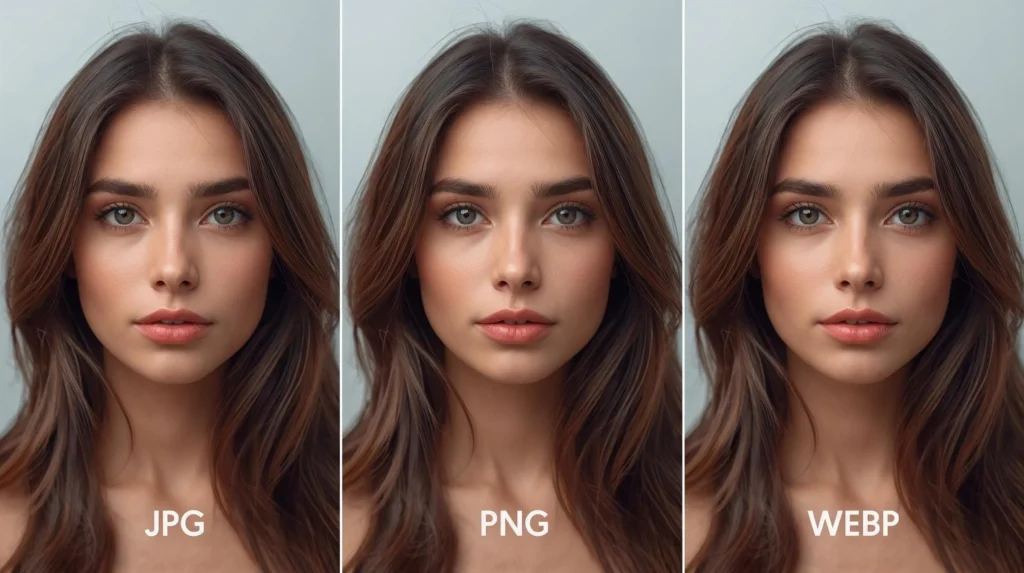
Here is the ultimate cheat sheet of good and bad conversions.
✔ Safe (Lossless or Minimal Loss)
| Conversion | Quality |
|---|---|
| PNG → PNG | Perfect |
| PNG → WEBP (lossless) | Perfect |
| PNG → JPG (high-quality) | Small loss |
| JPG → WEBP | Small loss |
| WEBP → PNG | Preserved |
| BMP → PNG | Perfect |
| BMP → WEBP (lossless) | Perfect |
| TIFF → PNG | Perfect |
These conversions preserve quality or lose an amount that is barely visible.
❌ Unsafe (Noticeable Quality Loss)
| Conversion | Problem |
|---|---|
| JPG → JPG → JPG (many times) | Gets worse each time |
| JPG → PNG | No improvement, larger file |
| Low-quality JPG → WEBP | Quality stays low |
| WEBP (lossy) → JPG | More loss |
| PNG → JPG (0–50% JPG quality) | Big loss |
Key rule:
A bad image stays bad even after converting.
The best tool for this job:
Why it’s perfect for high-quality conversion:
- Supports JPG, PNG, WEBP, BMP, GIF
- Allows switching between lossy/lossless WEBP
- Smart algorithm to preserve details
- No installation
- No watermarks
- No login
- Works in the browser (safe for privacy)
- Output quality adjustable
- Fast and simple interface
This is ideal for beginners and professionals.
(And perfect internal link for SEO.)
🟦 5. Step-by-Step: How to Convert Images Without Losing Quality
Here is the exact method used by designers, photographers, and professionals.
Step 1: Start with the highest-quality version available
If you have multiple versions of an image, pick the largest or cleanest original.
- Photo from camera → best
- Raw PNG → best
- High-resolution JPG → acceptable
NEVER use a screenshot of a screenshot.
Each generation loses detail.
Step 2: Choose the correct output format
✔ If you need perfect quality → PNG or WEBP (lossless)
✔ If you need small size + high quality → WEBP (lossy 80%)
✔ If you need a standard photo → JPG (80–90%)
Avoid converting PNG photos to PNG format — file size becomes too large.
Step 3: Use smart compression
On NasajTools:
- Choose lossless compression for PNG or WEBP-lossless
- Choose 75–85% quality for lossy JPG or WEBP
- Avoid going below 60% (visible artifacts)
Step 4: Preserve original resolution when possible
Upscaling (increasing image size) causes blurriness.
Down scaling is okay — but do it carefully.
Example:
- If your blog width is 1200px → never upload 4000px images
- Resize before converting
Use:
Step 5: Convert the image using a professional tool
For best quality:
- Upload image
- Select output format
- Choose compression level
- Download final optimized file
Step 6: Inspect the final quality
Zoom in 100–200% and check:
- Edges
- Text clarity
- Gradients
- Sharpness
- Noise
If anything looks bad, increase quality or try lossless mode.
This step-by-step workflow ensures you can convert images without losing quality, even if you are a complete beginner.
🟦 6. Best Formats for Web, Print, and Social Media
Different platforms require different formats.
⭐ For Websites & Blogs
Use WEBP (lossy 70–85%)
Why?
- Smallest file size
- High quality
- Recommended by Google
- Improves Core Web Vitals
⭐ For Logos & Transparent Images
Use PNG or WEBP lossless
⭐ For Printing
Use TIFF, PNG, or High-quality JPG (90%)
⭐ For Social Media
Use JPG (80%) or PNG
Platforms like Instagram and Facebook re compress your images anyway.
Better to upload medium compression JPG.
This guide shows beginners and professionals how to convert images without losing quality while maintaining sharpness, clarity, and optimal file size.
🟦 7. How to Convert Images for SEO (Without Losing Quality)
Speed is everything in SEO.
Here are correct steps for SEO image preparation:
✔ Step 1: Resize image to correct dimensions
Blog featured image example: 1200 × 628
Blog body images: 900 × 600
✔ Step 2: Convert to WEBP
Best choice for SEO.
✔ Step 3: Compress to 60–80% quality
Barely noticeable changes, huge savings.
✔ Step 4: Add ALT text
Example:
“Convert images without losing quality using online tools”
✔ Step 5: Rename file with keywords
Example:image-conversion-guide.webp
✔ Step 6: Lazy load below-the-fold images
Improves LCP.
Result?
A fast website that ranks higher in Google.
🟦 8. Why WEBP Is the Best Format for Quality Preservation
WEBP supports:
✔ Transparency
✔ Lossless mode
✔ Lossy mode
✔ 30–50% smaller files
✔ Extremely sharp details
It is the perfect balance between:
- Quality
- Speed
- SEO performance
- Modern browser support
If you care about preserving quality while keeping your website fast — WEBP is the best.
Google recommends modern image formats like WEBP for better performance and quality, as explained in the official Google WebP documentation.
🟦 9. Common Mistakes When Converting Images
Most beginners do these wrong:
❌ Saving JPG as PNG expecting higher quality
PNG cannot create quality that doesn’t exist.
❌ Using screenshots of images
Every screenshot reduces sharpness.
❌ Converting JPG → JPG repeatedly
Every save reduces detail.
❌ Over-compressing below 50% quality
Creates visible pixelation.
❌ Uploading original 4000px camera images
Huge file size → terrible for SEO.
❌ Using bad online converters
Some add watermarks or heavy compression.
🟦 10. FAQ: Image Conversion Without Quality Loss
Yes — if settings are correct.
🟦 11. Conclusion
Converting images without losing quality is simple once you understand formats, compression types, and proper workflow.
Knowing how to convert images without losing quality helps designers, bloggers, and website owners protect visual clarity while improving performance and SEO.
To summarize:
⭐ Use PNG / WEBP lossless for perfect quality
⭐ Use WEBP lossy 80% for best web performance
⭐ Avoid low-quality JPG upscaling
⭐ Always resize before converting
⭐ Always check the final output
And remember:
The best way to convert images safely is with a smart converter:
and for compression:
These tools ensure your images remain sharp, clean, and high-quality — while keeping file size small and SEO strong.