If you want to compress images for SEO effectively, you must optimize their size before uploading. Images are one of the biggest reasons websites load slowly, and page speed is a confirmed Google ranking factor. A single uncompressed image can be 1–5 MB, and when multiple large images load on a page, performance drops dramatically. This hurts SEO, Core Web Vitals, and user experience.
That’s why compressing images for SEO is one of the easiest and fastest ways to improve rankings.
In this complete guide, you’ll learn:
- Why image compression is critical for SEO
- How image size affects Core Web Vitals & rankings
- Lossless vs. lossy compression (and which one to use)
- The best image formats for SEO (JPG, PNG, WEBP)
- How to compress images without losing quality
- The exact steps to optimize images before uploading
- Free tools you can use (including NasajTools Image Compressor)
By the end, you’ll know how to reduce file size, improve load speed, and boost your Google ranking — without sacrificing image quality.
Who This Guide Is For
This guide is perfect for:
- Website owners
- Bloggers
- SEO beginners
- Developers
- Online tool users
1. Why Image Compression Is Important for SEO
When you compress images for SEO properly, you reduce file size without sacrificing visual quality, which directly improves Google ranking signals.
❗ Images influence SEO through:
1. Page Speed
A website that loads in 1 second has 3x more conversions than a site that loads in 5 seconds.
Most of the time, slow loading = large images.
According to Google PageSpeed Insights, images are one of the biggest causes of slow pages.
2. Core Web Vitals
Image files heavily affect:
- LCP (Largest Contentful Paint)
- FID (First Input Delay)
- CLS (Cumulative Layout Shift)
If images are heavy, your LCP score becomes poor → Google lowers your rankings.
3. Mobile Performance
Over 70% of Google searches are now from mobile.
Mobile networks are slower → uncompressed images destroy speed.
4. Crawl Budget & Indexing
Heavy pages = slower crawling = slower indexing.
This is why Google literally says:
“Optimizing your images is one of the most important steps in improving your site’s performance.”
So if you want your website to rank: compress your images.
2. How Image Size Affects Your Rankings
Let’s break it down quickly:
| Page Load Time | Bounce Rate Increase |
|---|---|
| 1–3 seconds | +32% |
| 3–5 seconds | +90% |
| 6–10 seconds | +123% |
When you compress images for SEO correctly, you significantly improve page load time, which reduces bounce rate and increases rankings.
Bounce rate is a ranking signal.
If people leave because your images load slowly → Google pushes your page down.
✨ A simple rule:
Each image must be under 200 KB
and
Feature images should be under 100 KB when possible.
You will achieve this with compression.
3. Lossless vs. Lossy Compression: Which Should You Use?
Most websites perform poorly because they don’t compress images for SEO before uploading them, which leads to oversized files and slower performance.
Lossless Compression
- Perfect quality
- File size reduces 10–40%
- Best for logos, text-based images, UI elements
Use when: you need perfect pixel quality.
Lossy Compression
- Slight quality reduction (barely visible)
- File size reduces 40–90%
- Best for photos, blog images, product images
Use when: you need the smallest file size for SEO.
⭐ Best practice:
- Logos → lossless
- Blog images → lossy (60–80% quality)
- Product photos → lossy (75–85% quality)
NasajTools Image Compressor supports both types.
4. Best Image Formats for SEO (2025 Update)
Choosing the right format is as important as compressing the image.
1. WEBP — Best for SEO
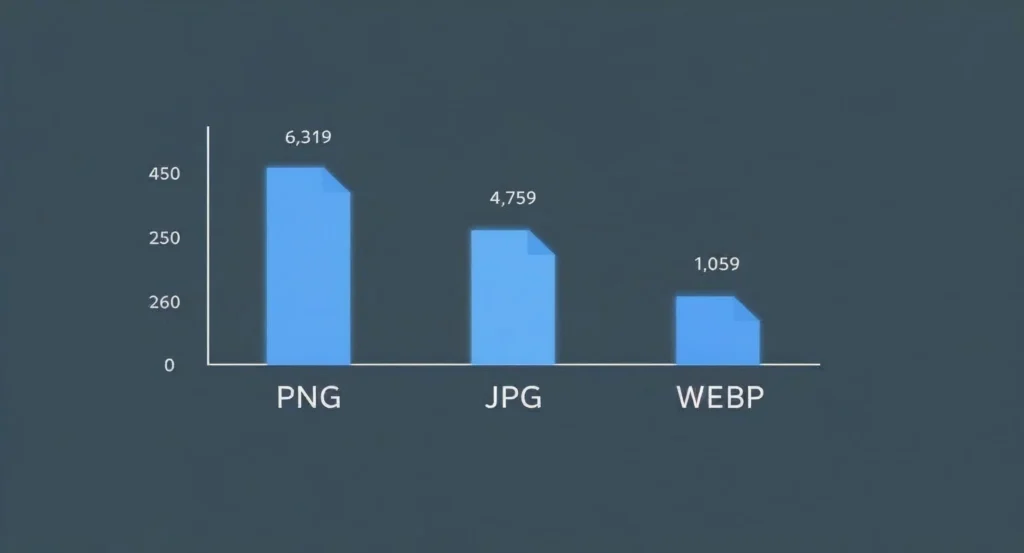
- 25–35% smaller than JPG
- High quality with tiny file size
- Supported by almost all browsers
Recommended for: Blog images, hero images, product photos.
2. JPG — Still Good
- Good quality
- Small file size
- Very popular
Recommended for: Photos, banners.
3. PNG — Use Only When Needed
- Large file sizes
- Perfect quality
- Supports transparency
Recommended for:
Logos, icons, screenshots, images with transparency.
❌ Avoid:
- TIFF
- BMP
- RAW
These are huge and not suitable for web.
5. How to Compress Images Without Losing Quality
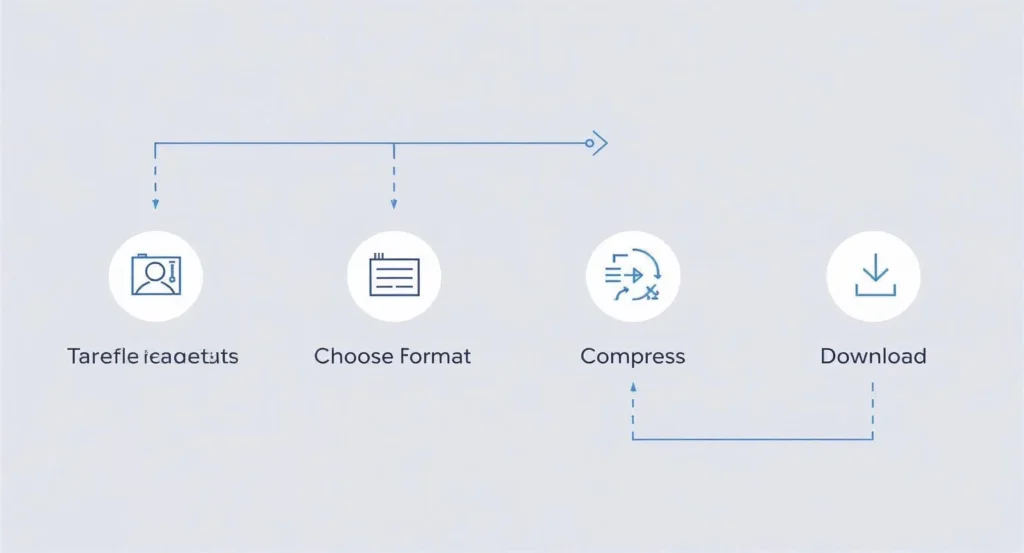
Here is a simple SEO-friendly workflow.
Step 1: Choose the correct dimensions
Do NOT upload:
- 5000px images
- 4000px images directly from your camera
- 4K images to your blog
Use these recommended sizes:
| Use Case | Size |
|---|---|
| Blog feature image | 1200 × 630 px |
| Blog inline images | 900 × 600 px |
| Product photos | 1500 × 1500 px |
| Thumbnails | 400 × 250 px |
| Logo | Max 200 KB |
Step 2: Resize the image BEFORE compression
Use:
- Photoshop
- Canva
Step 3: Compress using a high-quality tool
Best tool to use:
Settings to use:
Lossy Compression
- Quality: 60–80%
- Format: WEBP
- Best for blogs & SEO pages
Lossless Compression
- Format: PNG
- Best for logos or transparent images
Step 4: Rename the image with SEO keywords
A common mistake is forgetting to compress images for SEO during the preparation stage, which can make even optimized blogs load slowly.
Example:
image-compressor-tool-guide.jpg → GoodIMG_00293.JPG → Bad
Use hyphens, not underscores.
Step 5: Add ALT text
Google uses ALT text to understand your image.
Example:
“How to compress images for SEO using online tools”
Make sure ALT text describes the image — not keyword spam.
Step 6: Serve images in Next-Gen formats
Use WEBP or AVIF for best performance.
Google PageSpeed Insights will show a warning if you don’t.
Step 7: Lazy-load all below-the-fold images
This improves LCP and CLS.
6. Tools You Can Use to Compress Images
Here are the best tools, with explanations.
1. NasajTools Image Compressor (Best for SEO)
URL: https://nasajtools.com/tools/image/image-compressor.html
Why it’s great:
- Lossless + lossy modes
- Supports JPG, PNG, WEBP, SVG
- Smart compression algorithm
- No login
- 100% free
- Fast processing
- Privacy safe (client-side code)
This is perfect for your visitors — and ideal to link inside your blog.
2. NasajTools Image Converter
Convert between:
- JPG
- PNG
- WEBP
- GIF
- BMP
Great for preparing images before compression.
3. Photoshop / Lightroom
Good for editors, but slow for blogs.
4. TinyPNG / TinyJPG
Good quality, but rate limits.
5. Squoosh
Google’s tool, high quality but manual.
7. Common Mistakes to Avoid
❌ Uploading huge 5MB+ images
Always compress to under 200 KB.
❌ Using PNG for photos
Only use PNG for logos.
❌ Compressing after upload
Always compress before uploading.
❌ Uploading images larger than your container
Example: Uploading 3000px images for a 1200px container.
❌ Not switching to WEBP
Google expects next-gen formats.
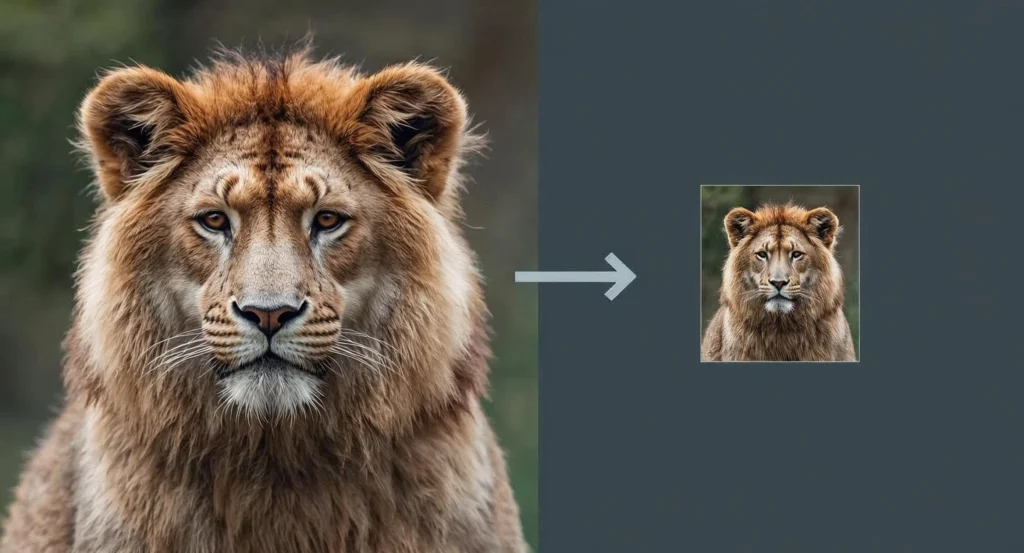
8. Real Example: Before & After Compression
Before
- File: 1.8 MB
- Format: JPG
- Dimension: 3000 × 2000
Steps Taken
- Resize to 1200 × 800
- Convert to WEBP
- Compress to 75% quality
After
- File: 118 KB
- No visible quality loss
- 93% size reduction
- Page loaded 1.2 seconds faster
This is what Google wants.
9. Final Checklist Before Publishing Your Image
Before uploading any image to your website, confirm:
✔ Correct format (WEBP preferred)
✔ Correct dimensions
✔ File size under 200 KB
✔ Compressed using lossy or lossless
✔ ALT text added
✔ Lazy-loading enabled
✔ File name SEO-friendly
✔ No unused EXIF metadata
10. Conclusion
If you consistently compress images for SEO, your site will stay fast, mobile-friendly, and more competitive in Google search results.
Image compression is one of the fastest, cheapest, and most effective SEO strategies. It improves:
- Page speed
- User experience
- Core Web Vitals
- Google rankings
- Mobile performance
If you compress all images correctly, your site will load faster, rank better, and attract more visitors.
To get started, use the free tool:
A: With modern lossy compression, quality loss is usually invisible while file size drops significantly.
A: With modern lossy compression, quality loss is usually invisible while file size drops significantly.
A: Most blog images should be under 200 KB and sized correctly for their container.