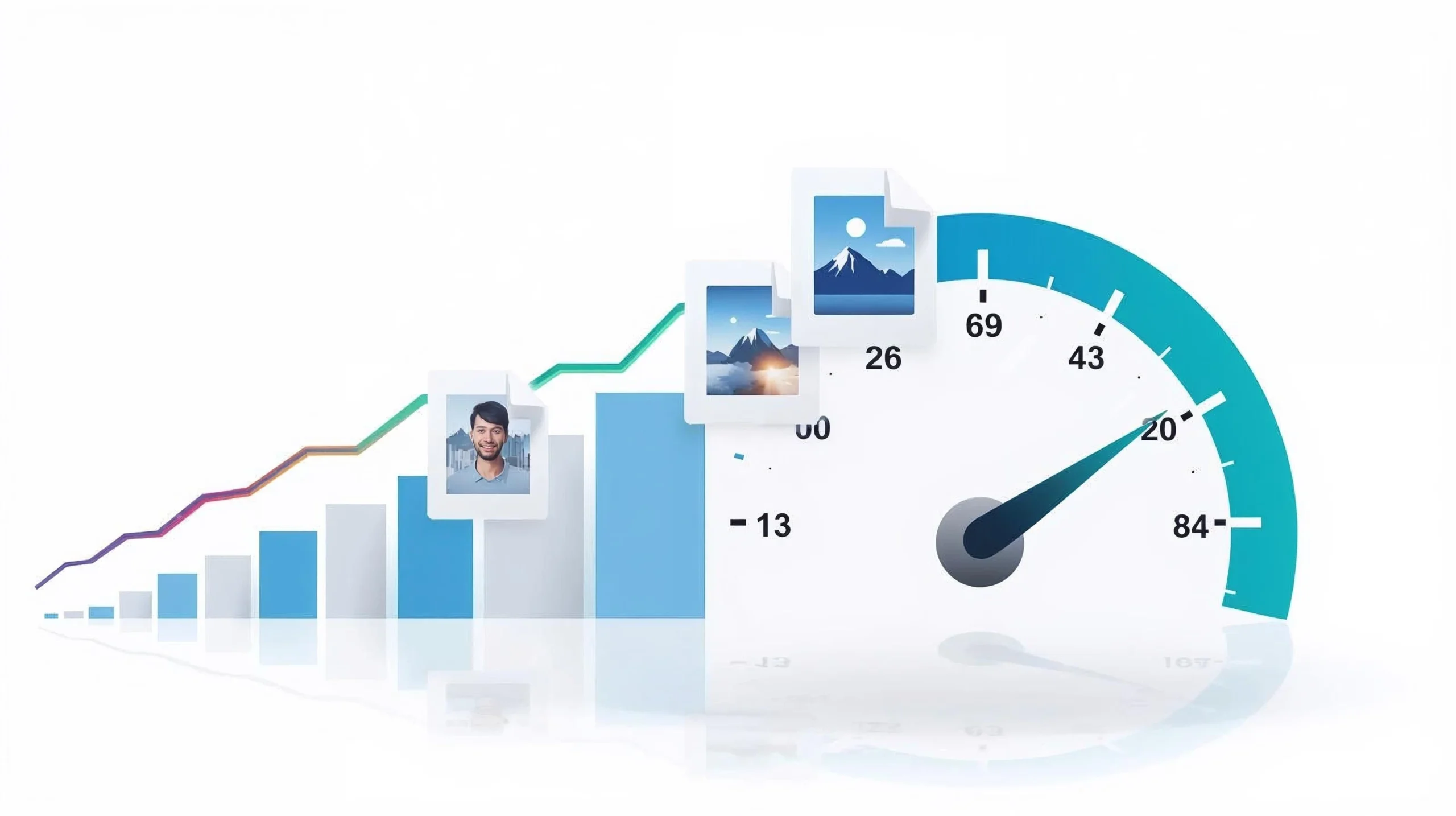
Image optimization for website speed is one of the most effective ways to improve SEO and performance in 2025.
Website speed has never been more important. In 2025, Google’s ranking algorithm strongly prioritizes fast-loading pages, especially on mobile devices. If your website loads slowly, users leave, rankings drop, and revenue decreases — even if your content is great.
And the number one reason most websites are slow?
👉 Images.
For most websites, images make up 50–90% of total page weight.
The good news is that image optimization is one of the easiest, fastest, and most effective ways to improve website speed — even if you have no coding experience.
In this complete guide, you’ll learn:
- Why images slow down websites
- How image optimization improves SEO
- The best image formats for speed
- How to compress images correctly
- How to resize images the smart way
- How to use WEBP for faster performance
- Lazy loading, caching, and CDN strategies
- A step-by-step workflow to optimize all images
- Free tools you can use (NasajTools Image Tools)
Let’s dive in.
🟦 1. Why Image Optimization for Website Speed Matters for SEO (2025)
Website speed is a confirmed ranking factor. Google evaluates page experience, which includes:
- Largest Contentful Paint (LCP)
- Cumulative Layout Shift (CLS)
- Interaction to Next Paint (INP)
- First Contentful Paint (FCP)
- Overall page load time
When images are too heavy, LCP becomes slow, and Google automatically pushes the page lower in search results.
✔ Websites loading in 1–2 seconds perform better
✔ Websites slower than 3 seconds can lose up to 50% of visitors
✔ Google measures speed using real user data (Chrome UX Report)
If your site is slow because of unoptimized images, your SEO will suffer.
🟦 2. How Images Affect Website Speed
Images slow down websites for several common reasons:
❌ Large file sizes
Many beginners upload images that are 3MB, 5MB, or even 10MB.
A page with 10 images can easily reach 50MB — which is unusable on mobile.
❌ Wrong image format
Uploading photo images as PNG files significantly increases load time.
❌ Oversized dimensions
Using a 4000px image where only 1200px is needed wastes bandwidth.
❌ No compression
Uncompressed images load much slower.
❌ No lazy loading
The browser loads all images at once, hurting LCP.
❌ No CDN
Images load from a single server, causing slow global performance.
🟦 3. What Is Image Optimization?
Image optimization is the process of:
- Reducing file size
- Preserving visual quality
- Choosing the correct image format
- Resizing images to the right dimensions
- Applying smart compression
- Serving responsive images
- Lazy-loading offscreen images
The goal is simple:
👉 Make your website load faster without sacrificing image quality.
Proper image optimization for website speed helps reduce load time without sacrificing visual quality.
🟦 4. Benefits of Image Optimization
✔ Faster page load time
One of the biggest SEO improvements you can make.
✔ Better Core Web Vitals
Especially LCP and INP.
✔ Higher Google rankings
Fast websites are rewarded.
✔ Lower bounce rate
Users stay longer on fast websites.
✔ Higher conversions and revenue
A 1-second speed improvement can increase conversions by 7–14%.
✔ Reduced storage and bandwidth usage
✔ Much better mobile performance
🟦 5. The Best Image Formats for Website Speed
Choosing the right format is the first step.
⭐ 1. WEBP (Best Choice for 2025)
- 30–40% smaller than JPG
- Supports transparency
- High quality with small file size
- Recommended by Google
- Excellent for SEO
Use WEBP for:
- Blog images
- Product photos
- Banners
- Thumbnails
- Background images
Convert images to WEBP here:
⭐ 2. JPG (Good for Photos)
- Small file size
- Good quality
- Fast loading
Use JPG when WEBP is not available.
⭐ 3. PNG (Use only when needed)
- High quality
- Sharp for UI
- Supports transparency
Use PNG for:
✔ Logos
✔ Icons
✔ Screenshots
✔ Transparent backgrounds
Do NOT use PNG for photos — too heavy.
🟦 6. How to Compress Images Without Losing Quality
Compression reduces file size by removing unnecessary data.
There are two types:
⭐ Lossless Compression
- No quality loss
- Larger than lossy, but still optimized
- Good for: logos, UI, transparent PNGs
⭐ Lossy Compression
- Slight quality loss (not visible if done correctly)
- Much smaller size
- Great for: blog images, photos, product images
Recommended lossy settings:
Quality: 70–85%
🟦 Resize Images Before Uploading (Common Mistake)
Uploading large images and resizing them with CSS wastes bandwidth.
Recommended image sizes:
| Image Type | Size |
|---|---|
| Blog featured image | 1200 × 628 px |
| Blog inside images | 900 × 600 px |
| Thumbnails | 400 × 250 px |
| Logos | Under 300 px width |
| Full-width banners | 1920 × 1080 px |
Resize with:
🟦 8. Lazy Load Images for Faster LCP
Lazy loading delays loading images until the user scrolls to them.
HTML example:
<img src=”image.webp” loading=”lazy” alt=”optimized image”>
Benefits:
- Reduces initial load
- Improves LCP
- Faster mobile performance
All websites should use lazy loading.
🟦 9. Serve Images Through a CDN
A CDN (Content Delivery Network) stores images across global servers.
Benefits:
- Faster global delivery
- Reduced server load
- Improved SEO performance
Cloudflare (free) is perfect for most websites.
🟦 10. Remove EXIF Metadata
Photos often include metadata:
- GPS
- Camera info
- Date
- Lens settings
- Thumbnails
This adds unnecessary weight.
Most converters (including NasajTools) remove this automatically.
🟦 11. Use Responsive Images
HTML for responsive images:
<img src=”image-1200.webp”
srcset=”image-600.webp 600w, image-900.webp 900w, image-1200.webp 1200w”
sizes=”(max-width: 768px) 100vw, 1200px”
alt=”web optimized image” />
This ensures:
- Smaller images load on mobile
- Larger images load on desktop
- Bandwidth is saved
🟦 12. Professional Image Optimization Workflow
Here is the professional process used by major websites:
STEP 1 — Resize image to correct dimensions
Use Image Resizer
STEP 2 — Convert to WEBP
Use Image Converter
STEP 3 — Compress for speed
STEP 4 — Rename file for SEO
Use this pattern:optimized-website-image.webp
STEP 5 — Add ALT text
Descriptive, keyword included naturally.
STEP 6 — Implement lazy loading
loading="lazy"
STEP 7 — Serve images from a CDN
Cloudflare recommended.
STEP 8 — Test on PageSpeed Insights
Fix any remaining issues.
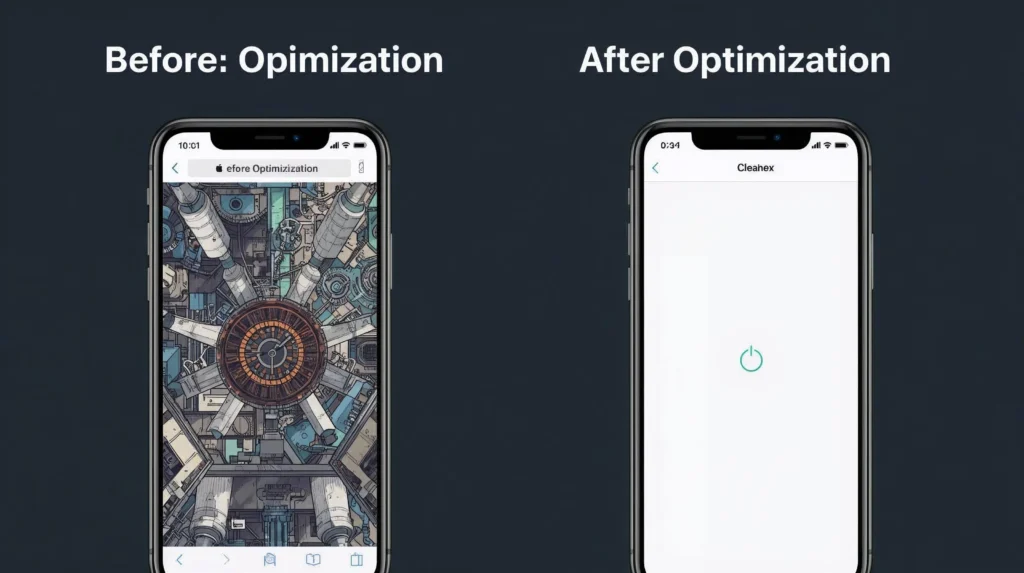
🟦 13. Results After Optimizing Images
A real example:
BEFORE:
- Image size: 2.5 MB
- Format: PNG
- No compression
- LCP: 4.2 seconds
AFTER:
- Image size: 160 KB
- Format: WEBP
- Compressed at 80%
- Lazy loaded
- LCP: 1.4 seconds
Website speed improves by 3×.
🟦 14. Common Image Optimization Mistakes
❌ Uploading PNG photos
❌ Using original camera images
❌ Skipping compression
❌ Over-compressing below 50%
❌ Missing ALT text
❌ Using GIF animations
❌ Ignoring WEBP
🟦 15. How Image Optimization Improves SEO
Optimized images improve:
- Page speed
- Crawl efficiency
- Core Web Vitals
- User engagement
- Image search visibility
Image optimization for website speed plays a critical role in improving SEO, Core Web Vitals, and overall user experience.
🟦 16. Conclusion
Image optimization is the fastest and most effective way to improve website speed. With a few simple steps, you can dramatically improve SEO, user experience, and conversions.
Start optimizing today:
Your website will load faster, rank higher, and perform better — guaranteed.